
EcoFlow RIVER 3 App Guide: Pairing, Timeout Settings, Firmware (From Our Test Unit)
A hands-on EcoFlow RIVER 3 app guide: Bluetooth pairing, 2.4GHz Wi-Fi, Device and AC timeout settings, firmware notes, and our 4-hour low-load router result.
The RIVER 3 works fine without the app — every test in our full review ran with the screen and buttons only. But three things you can only set or check in the app ended up mattering more than we expected during testing: the Device Timeout, the AC Timeout, and the firmware version.
This guide walks through pairing, the settings worth checking on day one, and what our firmware situation looked like. Everything here comes from our own unit: a China-market EFR705 (245.76Wh, 300W AC) that we ran through a full charging, capacity, and noise test series in July 2026. We’ll flag clearly where a claim is our measurement and where it’s general guidance you should verify against EcoFlow’s current documentation.
Which app the RIVER 3 uses
EcoFlow sells one main app (the EcoFlow app) for its power stations, including the RIVER 3. You can get it two ways:
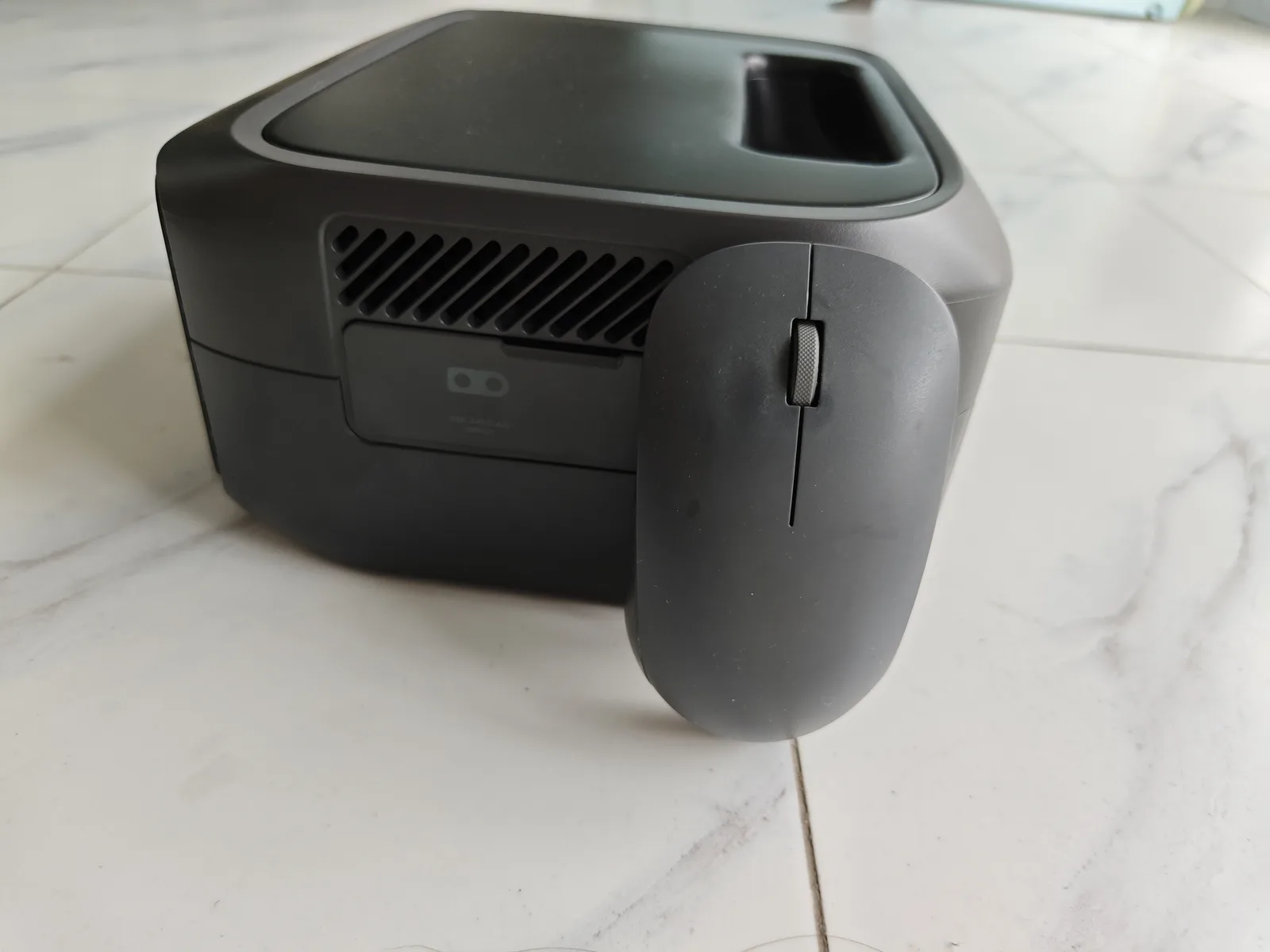
- The QR code printed on the unit. The RIVER 3’s nameplate carries a QR code that links to the app download. We photographed that nameplate during our review — it also doubles as the spec label, listing the Bluetooth radio that pairing uses.
- The pamphlet in the box. The retail package includes a getting-started card with the app QR code and a quick start guide.
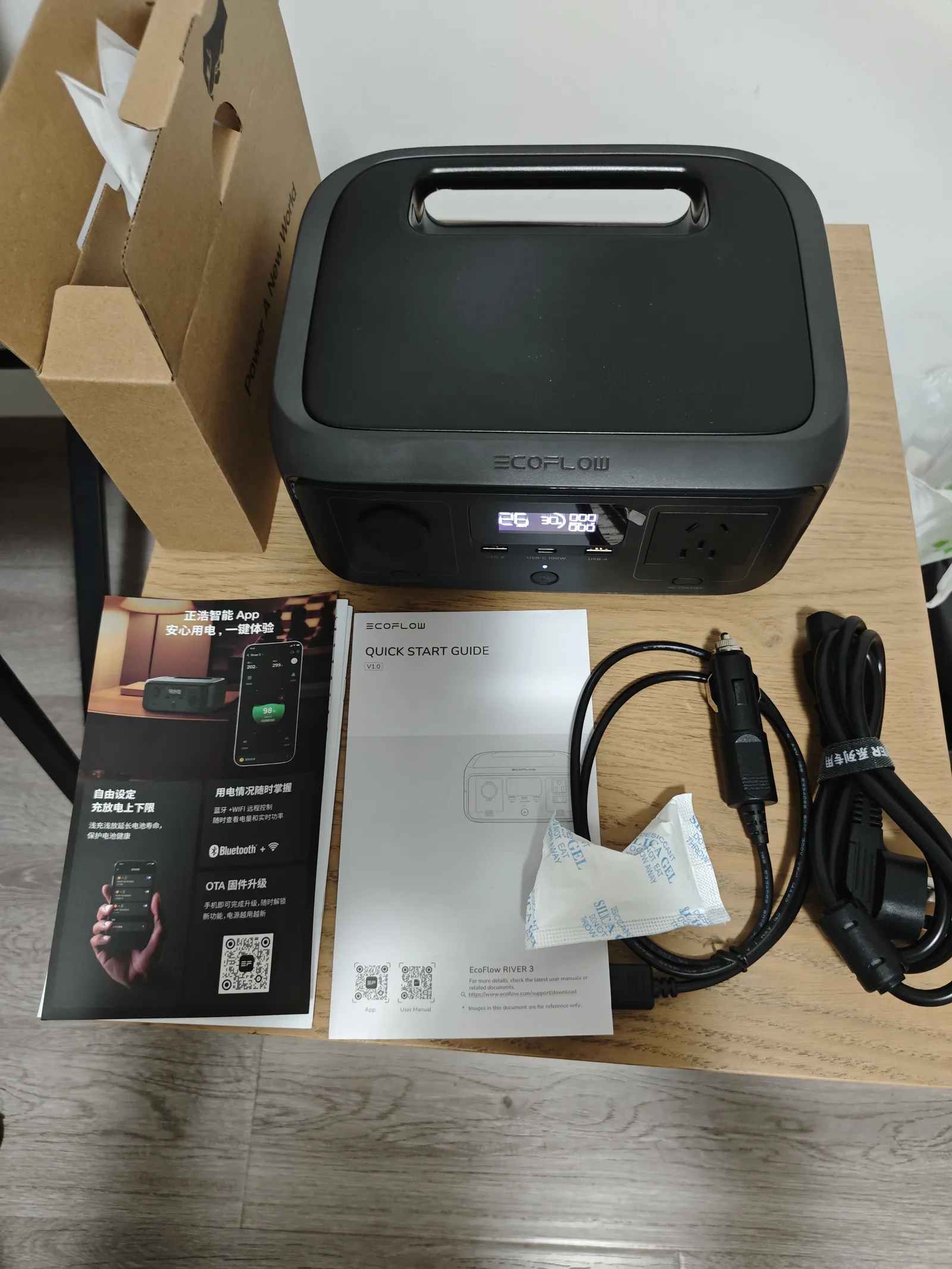
In the box: the RIVER 3, a quick start guide, and the pamphlet with the app QR code. Our unit shipped with China-market paperwork; contents vary by region.
One honest note: we don’t publish screenshots of the app itself. Our setup screens contain the unit’s serial number, our Wi-Fi name, and account details, and we’d rather describe the settings than crop around personal data. Every setting below is taken from our own test log, not from stock photos.
Pairing: what the process looked like for us
Binding our RIVER 3 took about two minutes total, in two stages:
- Bluetooth first. The app finds the unit over Bluetooth when you stand within a few meters of it. This step does not require internet.
- Wi-Fi second. After Bluetooth pairing, the app asks you to connect the station to your home Wi-Fi so it can report status remotely and pull firmware updates. Our pairing ran on a 2.4GHz network — that’s the band the setup flow used on our router.
If pairing fails, the usual suspects are (in our order of likelihood): Bluetooth permission not granted to the app on your phone, a 5GHz-only network name, or standing too far from the unit. A common practical fix is to split your router’s 2.4GHz and 5GHz bands into separate network names during setup — that’s general advice, not something we measured, but it has solved the same problem for other EcoFlow gear.
Wi-Fi is optional in practice: the unit charges and discharges normally whether or not it’s online. You only need the connection for remote monitoring and firmware updates.
The settings that matter: Device Timeout and AC Timeout
This is the section we’d send someone to first, because it explains the most confusing “problem” small power stations have: the unit or its AC output shuts off even though nothing is wrong.
The app exposes two separate timeout controls on the RIVER 3:
- Device Timeout — governs the unit itself going to sleep
- AC Timeout — governs the AC inverter output shutting down
Both settings on our unit ended at Never during our test series, and that context matters for interpreting our low-load results.
Our 4-hour router test (first-hand data)
With both timeouts set to Never, we connected a Wi-Fi router drawing about 6–7W to the AC outlet and let it run. The result, from our test log:
- The router stayed powered for 4 continuous hours (18:14 to 22:14), with no auto-shutdown of the unit or the AC output.
- The battery display fell from 100% to 81% — 19 percentage points for roughly 26Wh of actual AC output (the AC meter’s cumulative reading rose by about 0.026kWh).
- No faults, no restarts, no manual intervention.
How to read this: it proves the RIVER 3 can hold a tiny AC load for hours when the timeout settings allow it. It does not tell you what the factory-default timeout behavior is, because we had already changed both settings. If your RIVER 3 shuts down on a router, CPAP humidifier, or other small load, check Device Timeout and AC Timeout in the app before assuming a hardware fault — this is the single most common cause we’d expect for “my power station turns off with nothing big plugged in.”
Charge limits, backup reserve, and the other app controls
The app on our unit exposed these controls, which we either used or verified during testing:
- Charge and discharge limits. Our unit ran at the full 0%–100% window, which is how we got the complete charging curve and the full-capacity run-down tests in the charging deep dive. If you want to baby the battery for longevity, the app is where you’d cap the window — we didn’t, because our goal was measuring the full envelope.
- Backup reserve. Sets the state of charge the unit tries to keep in reserve (relevant if you pair it with solar or use it as a UPS-adjacent buffer). We left defaults; we have no first-hand measurement of this feature.
- Input and output settings, scheduled tasks, and low-battery reminders. Listed here for completeness — they exist in the app; we didn’t exercise them in the test series.
- LCD timeout. The screen auto-off was set to 5 minutes on our unit. Short screen timeouts are why people sometimes think the unit is off when it isn’t — the power button wakes it.
Firmware: what we saw, and how we handled it
Our test unit shipped on firmware 1.0.0.0 and the app offered an update to 6.30.49.80. Two things worth knowing from our experience:
- We deliberately did not update mid-test-series. Changing firmware halfway through a measurement series (charging curve, capacity runs, noise logs) would make the runs less comparable. If you’re just using the unit day-to-day, that concern doesn’t apply to you.
- The offered release note mentioned a fix for the live USB-C output-power display. That’s relevant if you’re chasing charging numbers on screen — our USB-C 100W test and slow-charging fixes were measured on the older firmware, with meter readings, not the on-screen display, as the source of truth.
General guidance: update firmware when the unit is sitting above roughly half charge, let it finish completely, and after a major update re-check the timeout settings — app updates have been known to revisit defaults on other EcoFlow models (general community observation, not something we measured on this unit).
If the app won’t pair or the unit shows offline
We didn’t hit pairing failures during our two-minute setup, so treat this as a short checklist built from the setup flow itself, not a troubleshooting bible:
- Bluetooth found but won’t bind: check the app’s Bluetooth and location permissions on the phone.
- App can’t find the unit at all: make sure the unit is powered on and close to the phone; the Bluetooth radio is on the nameplate spec, and range is short.
- Wi-Fi step fails: try the 2.4GHz band explicitly (our setup ran on 2.4GHz), and double-check the password — the station types it through the app.
- Unit shows offline in the app later: that’s the Wi-Fi connection, not the battery. The unit keeps working; it just can’t report home.
For problems that exist without the app — no charging, no output, error codes — start with our hardware guides instead: power station not charging and the EcoFlow error codes list.
Region note: which RIVER 3 we tested
Our unit is the EFR705 China-market version: 220–240V AC in/out, 245.76Wh, 300W AC output, 10ms UPS spec on the nameplate. The US RIVER 3 shares the 245.76Wh/300W core but uses 120V outlets and different regional claims. App behavior — pairing, timeout settings, firmware — should carry over, but we have only verified it on this one unit, and the app’s menu names may vary slightly by app version and region.
Data sources for this guide
- Pairing time, firmware versions, timeout settings, LCD setting, and charge limits: our own setup log and screenshot records from July 2026 (screenshots not published; they contain account and serial data).
- Router test numbers (6–7W, 4 hours, 100%→81%, ~26Wh): our AC load test log, measured with a wall power meter — also summarized in the full review.
- Nameplate data (Bluetooth, app QR, UPS spec): photographed directly from the unit.